About Us
At W3 Relations, we build eCommerce websites that convert. We help businesses grow through custom design, robust development, and smart digital marketing strategies.
Contact NowContact Info
- Sreemangal, Moulvibazar Sylhet, Bangladesh
- +880 1581110103
- info@w3relations.com
- Week Days: 09.00 to 18.00 Sunday: Closed
How to Design Checkout Page in Elementor WooCommerce (Modern One-Page Checkout Guide)
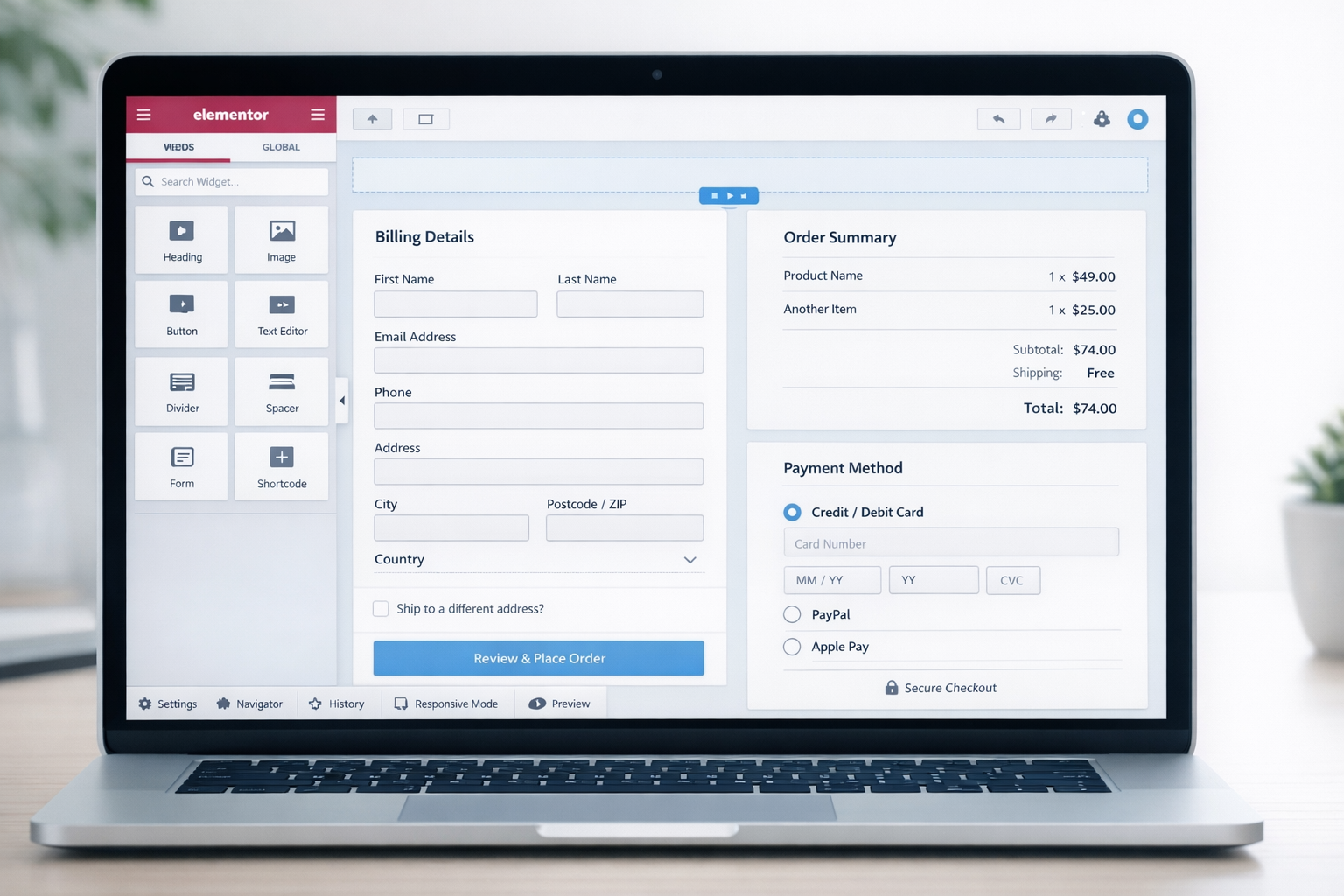
How to Design Checkout Page in Elementor WooCommerce (Modern One-Page Checkout Guide)
If you’re running a WooCommerce store, knowing how to design checkout page in Elementor WooCommerce is crucial for boosting sales and reducing cart abandonment. A complicated checkout can confuse buyers and lead to lost revenue. By using Elementor with the On-Page Checkout plugin, you can create a modern one-page checkout that is fast, visually appealing, and conversion-focused.
In this guide, we will show you how to design checkout page in Elementor WooCommerce, explore the plugin’s features, benefits, and step-by-step setup.
🚀 Why You Should Focus on Checkout Page Design
The checkout page is the last step before a customer completes a purchase. Learning how to design checkout page in Elementor WooCommerce correctly can help you:
- Increase completed orders
- Reduce cart abandonment
- Improve mobile buying experience
- Build customer trust
A visually optimized checkout page makes it easier for users to complete purchases, which directly improves sales.
🧩 What Is On-Page Checkout for Elementor?
The On-Page Checkout for Elementor plugin lets you create a single-page checkout system inside Elementor. Instead of sending users through a cart and multiple steps, this plugin allows them to:
- Select products
- Adjust quantity
- Fill billing details
- Complete payment
This solution is ideal for store owners who want to simplify checkout and improve conversions.
✨ Key Features of the Plugin
When learning how to design checkout page in Elementor WooCommerce, these plugin features are essential:
🛒 One-Page Checkout System
Customers can select products and complete checkout on one page without redirects.
🎯 Elementor Drag & Drop Support
Design your checkout visually with Elementor widgets.
📦 Supports Simple & Variable Products
Sell single items and variations easily.
➕ Quantity Selector
Let customers increase or decrease quantities directly.
🧾 Custom Checkout Sections
Rename or reorder sections like Billing, Shipping, Order Summary, and Payment.
🔗 Pre-Selected Products via URL
Send users directly to checkout with a product already selected.
⚙️ Editable Checkout Fields
Enable, disable, or relabel fields to simplify the process.
💳 WooCommerce Payment Gateway Support
Fully compatible with major payment options.
📱 Mobile Responsive
Your checkout page looks great on mobile, tablet, and desktop.
💡 Benefits of On-Page Checkout
Learning how to design checkout page in Elementor WooCommerce with this plugin brings several advantages:
- ⚡ Faster Buying Experience – fewer steps mean quicker purchases.
- 📉 Lower Cart Abandonment – simplified checkout keeps users from leaving.
- 🎨 Full Design Freedom – customize colors, typography, and layout.
- 🛍 Better Conversions – smooth checkout flow improves sales.
- 📲 Mobile Optimization – essential for today’s mobile-first shoppers.
🛠 Step-by-Step Guide to Designing Checkout Page
Here’s exactly how to design checkout page in Elementor WooCommerce using On-Page Checkout:
Step 1: Install Required Plugins
- WooCommerce
- Elementor
- On-Page Checkout for Elementor
Install the plugin via WordPress Dashboard → Plugins → Add New.
Step 2: Create a New Checkout Page
- Go to Pages → Add New → Edit with Elementor
- Name the page “Quick Checkout” or “Buy Now”
Step 3: Add the On-Page Checkout Widget
- Search for On-Page Checkout in Elementor
- Drag it onto your page
- Configure product IDs, quantity, and optional pre-selection settings
Step 4: Customize Layout
- Adjust spacing, typography, and colors
- Style the “Place Order” button
- Ensure the layout matches your brand
Step 5: Optimize Checkout Fields
- Remove unnecessary fields like Company Name or extra address lines
- Keep only essential information to speed up checkout
Step 6: Test Mobile Responsiveness
- Preview on tablet and mobile
- Make sure users can complete checkout easily from any device
🔥 Pro Tips for High-Converting Checkout Pages
- Keep design minimal and distraction-free
- Highlight trust signals (secure payment icons)
- Make sure buttons are prominent and clickable
- Avoid unnecessary form fields
- Use clear instructions for first-time buyers
🎯 Final Thoughts
Knowing how to design checkout page in Elementor WooCommerce is key to running a successful online store. By combining Elementor with the On-Page Checkout plugin, you can create a one-page, high-converting checkout page that improves user experience, reduces cart abandonment, and increases sales.
If you want a fast, modern, and professional checkout, implementing this approach is one of the smartest moves for your WooCommerce store.